
Translate text in images in Chrome
Read a menu, a manga panel or a screenshot in your language. The translation appears over the image and stays on your computer.
How to translate an image
Choose an image
Right-click a picture and choose “Translate image”. You can also paste a screenshot or drop a file into the side panel.
Select a language
Choose the language you want to read. The first time you use a language pair, Chrome asks you to download its language pack.
Read it in place
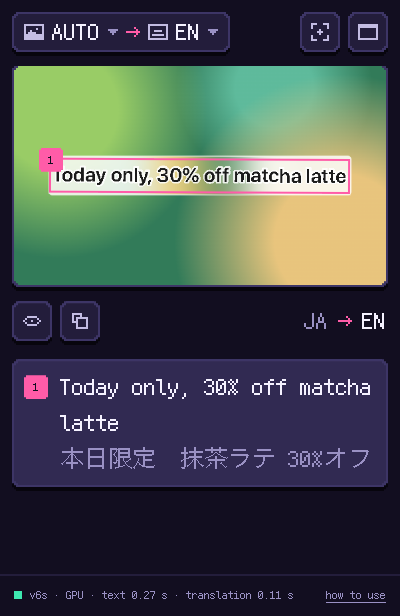
The side panel shows the translation over the picture. Press and hold to see the original, or copy the translation.
What you can translate
Manga and webtoons
Read Japanese speech bubbles, including vertical writing, and follow Korean and Chinese comics panel by panel.
Product photos
Read sizing charts, care labels and ingredients in product images without retyping unfamiliar characters.
Screenshots and signs
Select part of a page, a paused video or a street sign. You can translate the whole visible tab as well.
36 source languages, 39 translation languages
Image Translator reads Latin and Cyrillic alphabets, Chinese characters, Japanese, Korean and more. You can also translate into Hebrew, Bengali and Kannada.
Frequently asked questions
Can I use it offline?
Yes. Recognition runs on your computer. Once Chrome has downloaded the language packs you need, translation works offline too.
Which browsers are supported?
Use desktop Chrome 138 or later on Windows, macOS or Linux. Recognition can use your graphics card or processor.
How do I capture just part of the page?
Press Alt+Shift+S (Option+Shift+S on Mac) and drag across the area. Alt+Shift+A captures the visible tab.
Where do my images go?
Images, recognized text and translations stay on your device. You can choose to send feedback separately.